Integrations
Connect the tools you already run.
Halo works with OpenID Connect and SAML 2.0 applications. Guides with ready-made configuration cover common applications, and two generic guides cover anything else that supports either protocol.
Guides
Step-by-step guides for common applications.
Each guide covers both sides: registering the application in Halo, and configuring the application with the values to copy. The two generic guides cover any other application that supports OpenID Connect or SAML 2.0.
How connecting works
Four steps in the console.
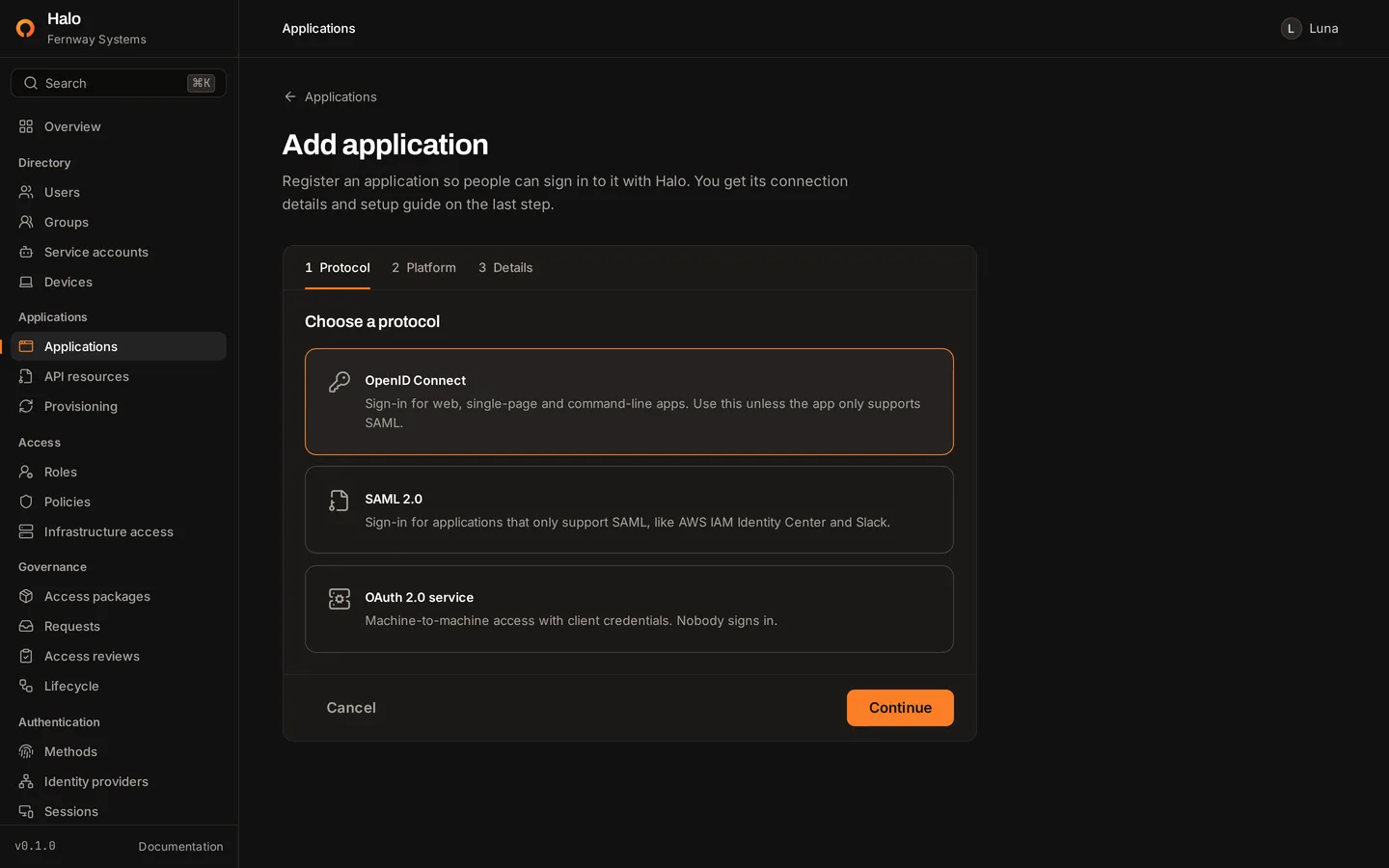
Shown for a web application such as Grafana. Single-page and native applications get no client secret and use PKCE instead.
- 01
Add the application
Open Applications, choose Add application, then OpenID Connect and Web application. Pick a template such as Grafana, or Custom.
- 02
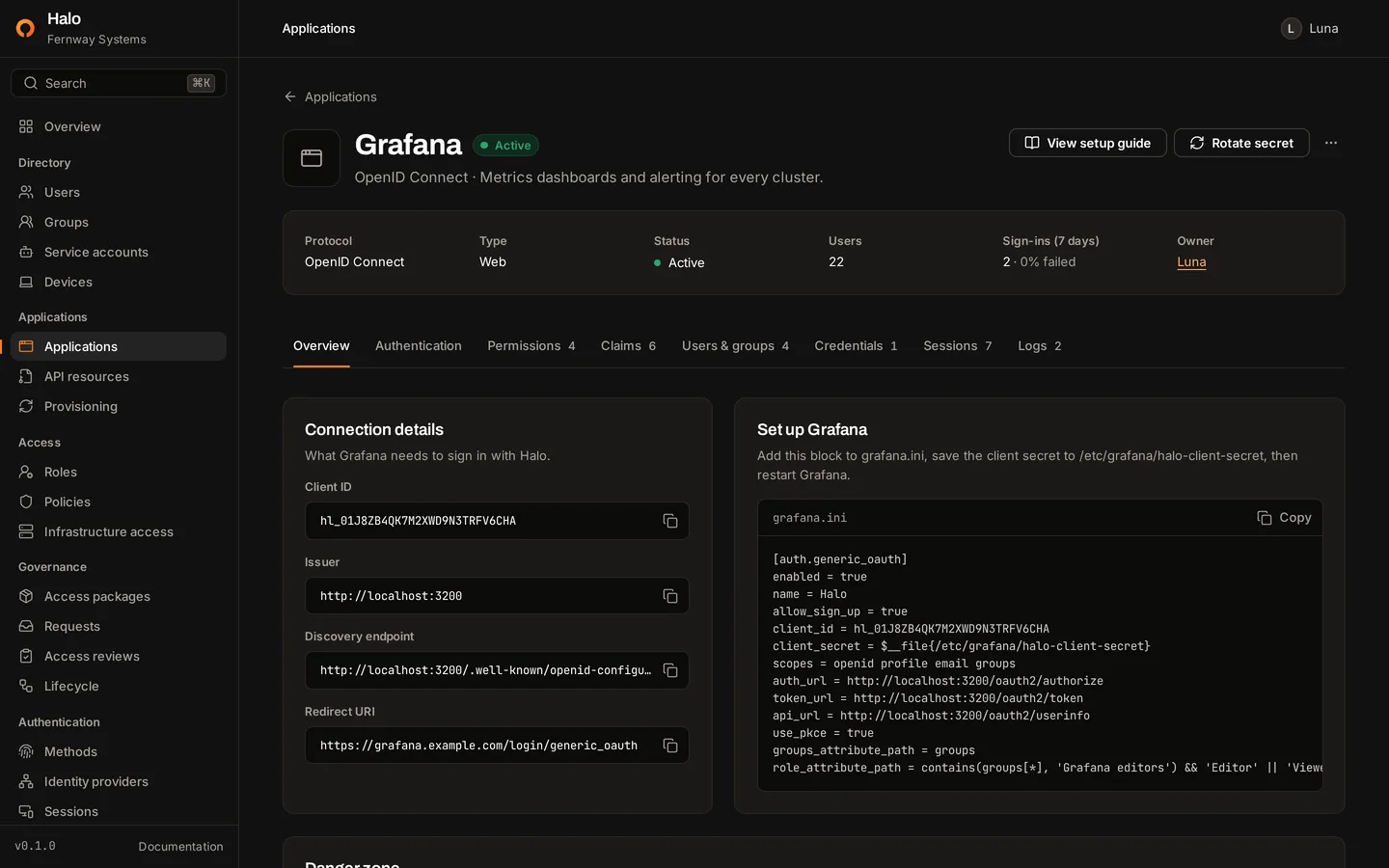
Copy its credentials
Enter the application's redirect URI and create it. Copy the client ID and the client secret: Halo shows the secret only once.
- 03
Assign groups
Under Users & groups, assign the groups whose members may sign in. Until a group is assigned, nobody can.
- 04
Point it at Halo
Configure the application with Halo's issuer, such as
https://auth.example.com. Applications that support discovery read every endpoint from/.well-known/openid-configuration.
SAML applications follow the same pattern: enter the service provider's entity ID and ACS URL, or paste its metadata, then give the application Halo's metadata URL, https://auth.example.com/saml/metadata.
Sign-in through other providers
Let people use an account they already have.
People can sign in to Halo with Google, Microsoft Entra ID, GitHub or any OpenID Connect provider. Halo stays the identity provider for your applications: the other provider only proves who someone is when they sign in to Halo.
https://auth.example.com/api/v1/auth/federated/callbackHalo links a provider account to an existing person only when the provider confirms the email address and its domain is allowed. Creating accounts on first sign-in needs at least one allowed domain.
A federated sign-in carries amr: ["fed"], so policies that require a passkey or security key refuse it.
| Provider | What Halo needs | Details |
|---|---|---|
| Client ID and secret of a Web application OAuth client | The issuer is always https://accounts.google.com. Add your domain to the allowed email domains to limit sign-in to your Google Workspace. | |
| Microsoft Entra ID | Client ID, client secret and the directory (tenant) ID | Halo builds the tenant-specific issuer https://login.microsoftonline.com/<tenant id>/v2.0, and does not accept domain names or common. Add the optional claims email and xms_edov to the ID token. |
| GitHub | Client ID and secret of a GitHub OAuth app | GitHub uses OAuth rather than OpenID Connect, so Halo reads the account from GitHub's API. For GitHub Enterprise Server, enter its address as the GitHub URL. |
| OpenID Connect | Issuer URL, client ID, and the client secret unless you registered Halo as a public client | Halo reads the provider's discovery document from the issuer, which must use https. |
Provisioning into Halo
Let your directory keep Halo up to date.
Halo is a SCIM 2.0 server, tested with the request formats of Okta and Microsoft Entra ID. Either of them, or an HR system, can create, update and remove people and groups in Halo.
- Base URL
https://auth.example.com/scim/v2- Token
- An API key with the
scimscope, sent as a bearer token. - Role
- User administrator. Changing people who hold an administrator role in Halo needs global administrator.
Filters support a single eq condition, and there are no bulk operations. Deleting a person over SCIM sets them to deprovisioned and keeps their history.
Okta
- 1Turn on SCIM provisioning in the general settings of the app integration you use for Halo.
- 2On the Provisioning tab, enter the base URL as the SCIM connector base URL and
userNameas the unique identifier, and send thehlk_key in an HTTP header. - 3Under To App, turn on creating users, updating user attributes and deactivating users. Then assign people and push groups.
Okta deactivates people by setting active to false, which suspends them in Halo.
Microsoft Entra ID
- 1In the enterprise application for Halo, open Provisioning and set the mode to Automatic.
- 2Enter the base URL as Tenant URL and the
hlk_key as Secret Token, then test the connection. - 3Map
userPrincipalNameormailtouserNamewith an email address, assign users and groups, and start provisioning.
Entra ID sends active as the string "False" when it disables someone. Halo accepts it and suspends the person.
Outbound SCIM
Accounts in your applications before the first sign-in.
For an OpenID Connect or SAML application with a SCIM 2.0 endpoint, Halo creates, updates and deactivates the accounts of the people assigned to it, every 2 minutes or when you choose Sync now.
Set it up
On the Provisioning page, choose Set up next to the application, enter its SCIM base URL and bearer token, and turn on pushing changes. Test reads the application's /ServiceProviderConfig, and Sync now pushes everyone right away.
The URL must use https, except for http://localhost and http://127.0.0.1. Halo stores the token encrypted with HALO_SECRET_KEY.
| When | Halo sends |
|---|---|
| A person is active and assigned to the application through a group | POST /Users with the email address as userName and primary work email, the name, title and department, and the Halo user id as externalId. |
| Their name, email address, title or department changes | PUT /Users/{id} |
| A create answers 409 Conflict | A search with filter=userName eq "…", then an update of the account it finds. |
| They lose the assignment or stop being active | A PATCH that sets active to false. |
Outbound SCIM pushes users only: groups are not pushed yet. Halo never deletes accounts in the application.
Don't see yours?
Halo works with OpenID Connect and SAML 2.0 applications, with or without a guide. Start from the generic guide for the protocol yours supports, and open an issue to propose a guide for it.
Open an issueRun Halo on your own infrastructure.
One command on a Linux host with Docker. Then create your administrator and register a passkey.
curl -fsSL https://halo.scala.gg/install.sh | sh